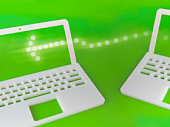
Well, there is something you should realize. Working from home while using a wireless local area network (WLAN) may lead to theft of sensitive information and hacker or virus infiltration unless proper measures are taken. As WLANs send information over radio waves, someone with a receiver in your area could be picking up the transmission, thus gaining access to your computer. They could load viruses on to your laptop which could be transferred to the company's network when you go back to work.
Believe it or not! Up to 75 per cent of WLAN users do not have standard security features installed, while 20 per cent are left completely open as default configurations are not secured, but made for the users to have their network up and running ASAP. It is recommended that wireless router/access point setup be always done though a wired client.
You can setup your security by follow these steps:
1. Change default administrative password on wireless router/access point to a secured password.
2. Enable at least 128-bit WEP encryption on both card and access point. Change your WEP keys periodically. If equipment does not support at least 128-bit WEP encryption, consider replacing it. Although there are security issues with WEP, it represents minimum level of security, and it should be enabled.
3. Change the default SSID on your router/access point to a hard to guess name. Setup your computer device to connect to this SSID by default.
4. Setup router/access point not to broadcast the SSID. The same SSID needs to be setup on the client side manually. This feature may not be available on all equipment.
5. Block anonymous Internet requests or pings. On each computer having wireless network card, network connection properties should be configured to allow connection to Access Point Networks Only. Computer to Computer (peer to peer) Connection should not be allowed.
Enable MAC filtering. Deny association to wireless network for unspecified MAC addresses. Mac or Physical addresses are available through your computer device network connection setup and they are physically written on network cards. When adding new wireless cards / computer to the network, their MAC addresses should be registered with the router /access point. Network router should have firewall features enabled and demilitarized zone (DMZ) feature disabled.
All computers should have a properly configured personal firewall in addition to a hardware firewall. You should also update router/access point firmware when new versions become available. Locating router/access point away from strangers is also helpful so they cannot reset the router/access point to default settings. You can even try to locate router/access point in the middle of the building rather than near windows to limit signal coverage outside the building.
There is no guarantee of a full protection of your wireless network, but following these suggested tips can definitely lessen your risk of exposing to attackers aiming at insecure networks.
How To Secure Your Wireless Network
There are now many websites devoted to ‘Wardriving', which involves people searching for exposed wireless networks and sharing this information via websites of via their social network.
If you have set up your wireless network straight from the box and have not changed any of the default settings, then there is a huge chance that you are supplying somebody else free Internet access or being hacked into. A wireless network will never be as secure as a cabled network. By following the seven steps below then you will stand a much better chance of protecting your home network.
1. Change Admin Password
The default password for most wireless kits is ADMIN. If you haven't changed this password then change it as soon as you can. It is surprising the amount of wireless networks that are hacked into or accessed by a third party because the ADMIN password is still ADMIN. Especially as manufacturers manuals can be downloaded from the Internet with their admin password.
2. Disable or Change the SSID
The Service Set Identifier [SSID] is a code that wireless hardware sends out to identify itself to other devices. By default the SSID is normally the manufacturer's name. The SSID is only required when devices are first synchronizing with each other, so the best option is to disable the SSID broadcast once your network connection is established.
By disabling SSID broadcast you will make it much harder for an intruder because they will have to start guessing the SSID code. Most wireless gateway devices offer the option to disable SSID broadcast, however some may require a firmware upgrade, and some devices do not offer that option at all.
If you cannot change the SSID or do not want to disable it, then the SSID should be changed to a unique phrase that is hard to guess. Using non-dictionary words as well as numbers and special characters for the new SSID will make it much more for your wireless network to be accessed by hackers.
3. Use 128-bit WEP Encryption
Wireless Equivalent Privacy [WEP] is the security standard and offers the option of either 64 or 128 bit encryption. It also includes additional encryption using the Initialization Vector (IV), which is a series of random bits added in front of a message before it is encrypted. 64-bit encryption is easier to hack into than 128 bit. You may need to update the firmware on your wireless device to be able to use 128-bit encryption.
Bu using encryption, if the wireless device and computer do not contain the encryption key, then no exchange of data will take place. Enabling 128-bit encryption will discourage people not permitted to access your network and make your network more secure. The casual hacker will normally move onto an easier target if they find encryption is enabled.
4. Turn off DHCP
Most wireless devices have Dynamic Host Control Protocol [DHCP] enabled. This allows a new host on your network to introduce itself and request an IP address so it can then connect and use your wireless connection. All very convenient for a legitimate user, but for an trespasser onto your wireless network, that's like putting a ‘come steal from me sign' outside your open and unlocked front door.
While it may be a pin to the legitimate user to your wireless network, it's a necessary one due to the amount of damage that can be done if left turned on. By using static IP addresses you will create another hurdle for the unwanted prowler wanting to steal your bandwidth and probably more.
5. Enable MAC Address Filtering
Each computer network adaptor has a unique address built in called the MAC address. Most wireless devices allow MAC address filtering. By creating a MAC address list of permitted network adaptors [that are attached to a computer], you are creating a guest-list so to speak. If a computer with a MAC address on the list, they will not be permitted to access the wireless network.
Mac addresses can be spoofed by a very technical minded knowledgeable individual, however by using MAC address filtering you will deter all but the most determined hacker.
If you are unsure about how to proceed with any of the above please read the manual that came with your wireless hardware. There normally is a wizard or step-by-step walk through that will help you.
I hope the five above tips will come in handy and enable you to use your wireless network without the threat of an unwanted intruder.
Both George Williams & John French are contributors for EditorialToday. The above articles have been edited for relevancy and timeliness. All write-ups, reviews, tips and guides published by EditorialToday.com and its partners or affiliates are for informational purposes only. They should not be used for any legal or any other type of advice. We do not endorse any author, contributor, writer or article posted by our team.
Cheap Flights For A Budget bus companies like Megabus are much, much cheaper than flying. Amtrak is more expensive than the bus, but also more comfortable. For shorter trips, the bus or train is a viable option